

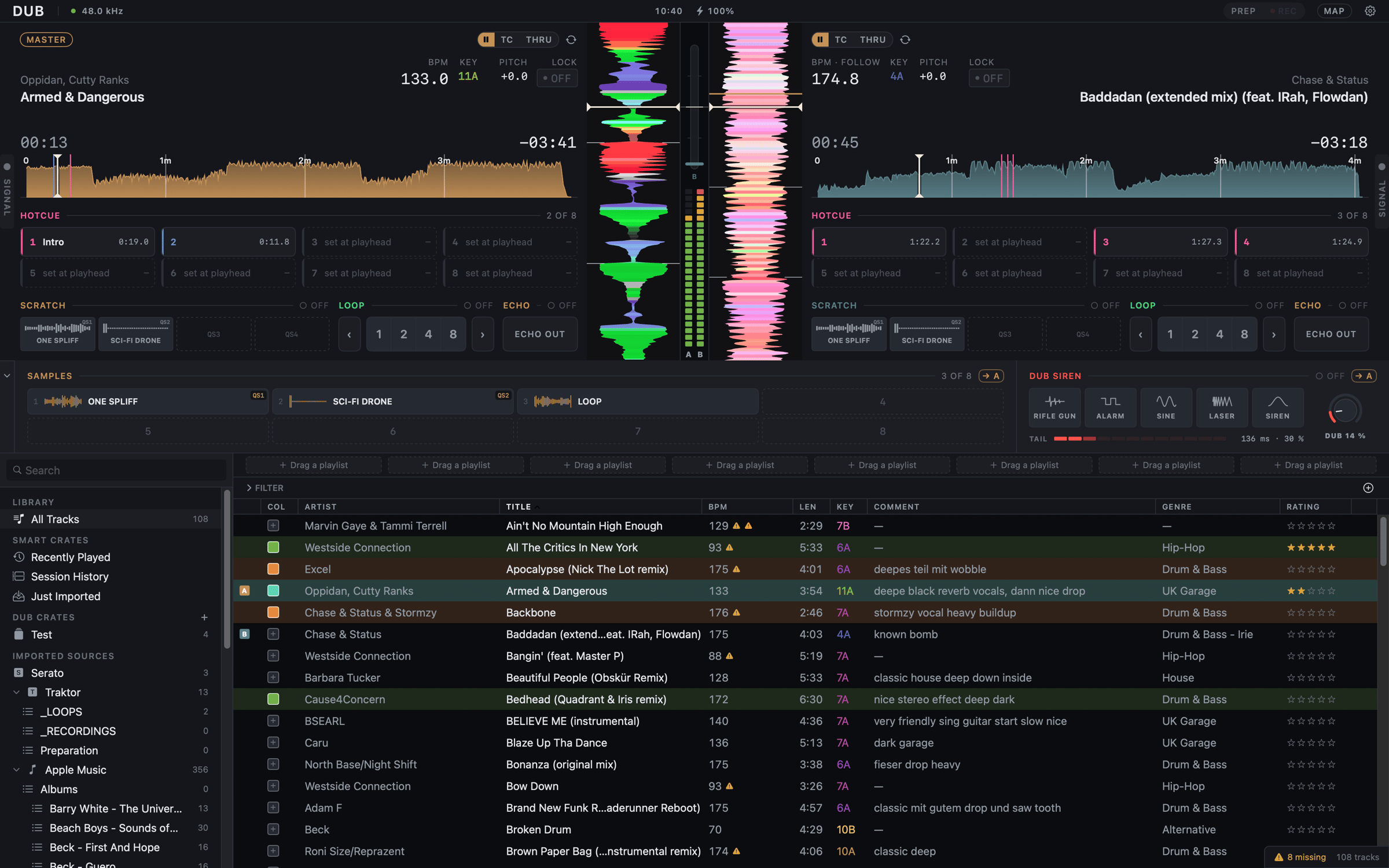
Dub starts with keys for both decks: the left hand plays deck A, the right
hand deck B. See Dub’s own keys. To move one, click
MAP in the status strip, click a control, then press the key you want.
The readouts
- MASTER sits in the deck’s top corner. It marks the deck the siren and samples land on, and the one Space-load avoids.
- BPM is the tempo the record is playing at right now: the track’s tempo scaled by your pitch. Ride the pitch until the two BPMs agree.
- KEY is the track’s key in Camelot.
- PITCH follows the platter, in percent.
- LOCK is key lock. ON, the key holds while the platter moves the tempo; OFF, pitch rides the platter like a record. Its dot is dim while there’s nothing to hold (at +0.0 % or inside a loop) and solid once it’s working.
The strip and zoom
The playing waveform runs vertically, with the playhead a quarter of the way down. Drag the strip to cue by hand: pushing it up plays forward, holding still is a stopped record. Hover over the strips and a + / − pair appears in the gap between them. It zooms both decks together, from 0.25× to 2×, so the two strips always share a scale.The phase meter
The bar between the decks is one beat tall, centred on the playhead line. Its marker is the other deck’s beat against the master’s, labelled A or B.- Marker above the line: that deck is late. Push the record.
- Marker below the line: it’s early.
- The marker turns green when both decks play within 15 ms of each other.
Beat grid and set the 1
The BPM readout is a tap pad, in Performance as in Prep:- 1–2 taps on the downbeat set the 1. The grid moves its 1 to the kick you tapped; the tempo stays.
- 3 or more taps on the beat re-take the tempo, with the first tap as the 1. While you tap, the label counts them: BPM (3).
Alpha. With Following beat grid on in Preferences ▸ Alpha, a
track played by a band gets a line on each beat where the band played it. The
readout then says BPM · FOLLOW and moves as the track plays.
A real record on THRU
A THRU deck has no track, so its BPM is the record’s tempo, heard live. The TEMPO heading says how sure it is: ○ LISTENING, ◐ TENTATIVE, ● LOCKED.- Tap the BPM on the 1 (once or twice) and the strip draws a bar line on that beat and every fourth beat after it.
- Tap it 3 or more times on the beat to set the tempo yourself (● YOUR TAP). The first tap is the 1.
- Right-click the BPM for Double — ×2, Half — ÷2, ×1.5 — drum & bass read at two-thirds and ×⅔. Back to the heard tempo undoes it.
Hot cues
Eight per deck, saved with the track. The HOTCUE heading counts them: 3 OF 8. A track you haven’t touched in Dub shows the hot cues it has in Serato, rekordbox or Traktor, and the heading says whose: FROM TRAKTOR · 3 OF 8. Change any of them and the set becomes yours (see A track in more than one app).
Rename… asks for a name like INTRO. Colour offers None,
Red, Orange, Yellow, Green, Aqua, Blue, Purple and
Pink.
New cues snap to the nearest beat. Turn that off with Snap cue points to the
beat grid in Preferences ▸ Decks.
Mapped hot-cue keys fire on the master deck. Hold ⇧ with the key to clear.
Loops
Loops grab the beats you just heard: press 4 and the last four beats repeat, the playhead jumping back into them. They need the track’s beat grid.- Lengths run from 1/8 to 16 beats, four on screen at a time. At rest you see 1 · 2 · 4 · 8; ‹ and › show shorter or longer lengths.
- While a loop runs, those buttons become ÷2 and ×2. They halve or double the running loop and keep its start.
- Press the lit length again to leave the loop. Playback carries on from there.
Echo out
ECHO OUT throws the deck into its echo, 100 % wet. Tap it on the beat you want to throw away: that beat plays, then repeats and decays while the dry signal is cut. The deck keeps playing underneath. Tap again and the tune comes back where it has got to. It works on THRU too. Loading a track or switching the source drops a running echo. Turn the button off in Preferences ▸ FX ▸ Echo out. If the deck’s output meter reads ECHO OUT, the tail has died and the deck is silent. Tap it off.Alpha. With Dub FX channel on in Preferences ▸ Alpha, the button
becomes OUT beside a HOLD toggle. HOLD sustains the thrown beat
through a record swap; tap HOLD again to let it decay, or OUT to cut it.